
SPDY Content Compression – How Should it Work?
 June 7, 2012 in
Firefox , HttpWatch , Optimization , SPDY
June 7, 2012 in
Firefox , HttpWatch , Optimization , SPDY
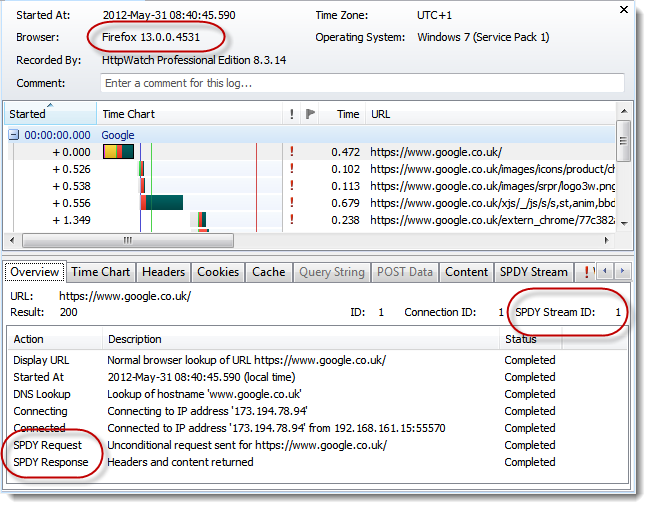
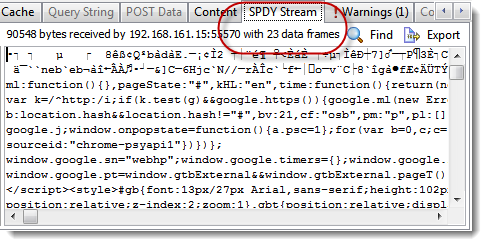
One of the first things we noticed when using HttpWatch in Firefox 13 was that Google servers do not compress content in SPDY responses:
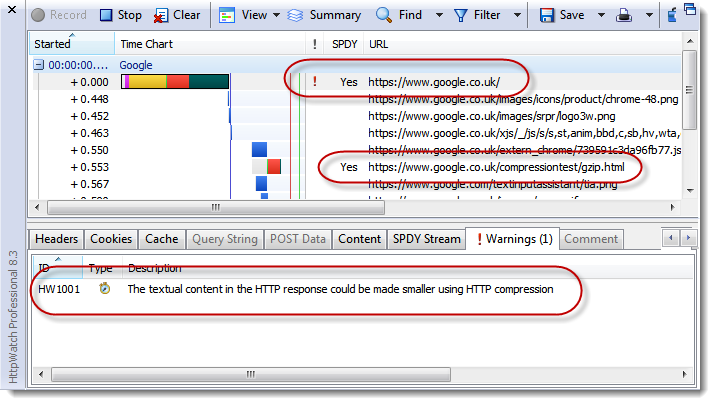
HTTP compression is usually the most important optimization technique a site can use because it drastically reduces the download size of textual resources such as HTML. It therefore seems surprising that the Google servers do not use it with SPDY responses to Firefox.
In fact, the Google home page tries to determine if the browser supports compression by downloading a gzip compressed javascript file to see if it executes. You can see the compression test URL highlighted in the screen shot above.
Normally, a browser indicates that it supports content compression using the Accept-Encoding request header. Firefox 13 doesn’t send this header in SPDY requests. Presumably, Mozilla believes it is not required:

Perhaps, it is the lack of this header that prevents the SPDY enabled Google servers from returning compressed content.
Twitter’s SPDY implementation takes a different approach. It assumes that if the browser supports SPDY then by implication it also supports compression:
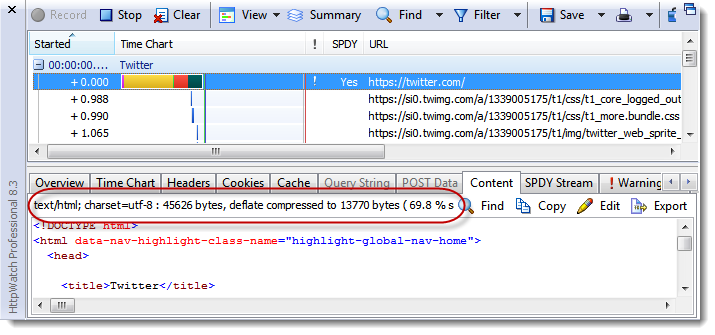
So why do Mozilla and Twitter have a different approach to Google over SPDY content compression? The difference is probably down to the way they have interpreted the relevant sections of the SPDY protocol definition.
The SPDY Draft 3 spec has two things to say about compression. First, for headers it clearly states that it is always on:
2.6.10.1 Compression
The Name/Value Header Block is a section of the SYN_STREAM, SYN_REPLY, and HEADERS frames used to carry header meta-data. This block is always compressed using zlib compression. …
However, for data compression it’s not so easy to work out what is required. The main section about content compression reads as follows:
4.7 Data Compression
Generic compression of data portion of the streams (as opposed to compression of the headers) without knowing the content of the stream is redundant. There is no value in compressing a stream which is already compressed. Because of this, SPDY initially allowed data compression to be optional. We included it because study of existing websites shows that many sites are not using compression as they should, and users suffer because of it. We wanted a mechanism where, at the SPDY layer, site administrators could simply force compression – it is better to compress twice than to not compress.
Overall, however, with this feature being optional and sometimes redundant, it was unclear if it was useful at all. We removed it from the specification.
That suggest that content compression is optional but does say if the client must support it.
In section 3.2.1 there’s a statement that supports the Twitter/Mozilla approach:
User-agents MUST support gzip compression. Regardless of the Accept-Encoding sent by the user-agent, the server may always send content encoded with gzip or deflate encoding.
However, the Overview section seems to imply that the normal Accept-Encoding / Content-Encoding handshake should be used:
SPDY attempts to preserve the existing semantics of HTTP. All features such as cookies, ETags, Vary headers, Content-Encoding negotiations, etc work as they do with HTTP; SPDY only replaces the way the data is written to the network.
The most sensible approach seems to be the one adopted by Mozilla and Twitter. It seems inconceivable that a SPDY aware client would not support content compression given that compression is always used for the headers.
The advantage of forcing all SPDY clients to support content compression is that the Accept-Encoding header is redundant and can be dropped saving a few bytes in each request message.