

 Blog
BlogUsing HttpWatch to Measure Page Load Times for New and Existing Users
 May 14, 2008 in
Automation , C# , Caching , HttpWatch , Internet Explorer , Optimization
May 14, 2008 in
Automation , C# , Caching , HttpWatch , Internet Explorer , Optimization
If you’re tuning a web page’s performance there are two types of visitors that you need to be concerned about:
- A new visitor to your site who won’t have any of your pages, scripts, CSS or images in their browser cache.
- An existing user of your site who will have your cacheable pages, scripts, CSS or images in their browser cache.
Visitor type 1) is said to be in the Empty Cache state and Vistor type 2) is said to be in the Primed Cache state. Optimizing for visitors with an empty cache is important as their initial impressions of your site will be affected by how quickly its pages are loaded.
The performance of any page is never going to worse for visitors with a primed cache, but minimizing the load on your site caused by existing users through the use of effective caching will reduce your bandwidth costs and server load.
Your can manually simulate these two scenarios with HttpWatch. For example, you could run an Empty Cache test on our home page (www.httpwatch.com) using these steps:
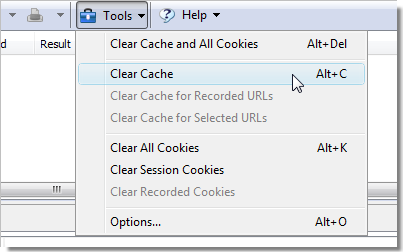
- Open a HttpWatch in IE and click on Tools->Clear Cache or use the keyboard shortcut Alt+C. If you haven’t cleared your browser cache recently this could take a few minutes:
- Click on Record and go to www.httpwatch.com
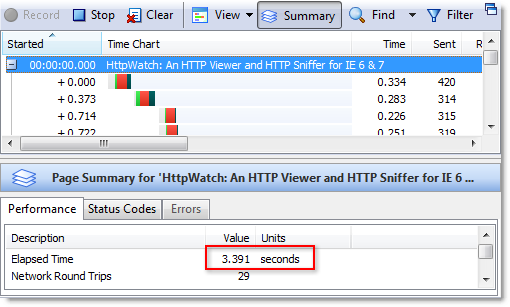
- HttpWatch will then display a time chart with the page load time:
To run the Primed Cache test you would first need to ensure that the page has already been visited and then re-visit it in a new instance of IE. You shouldn’t re-use the same instance of IE because there may some images held in memory from the first visit to the page. To perform the Primed Cache test you would need to:
- Visit www.httpwatch.com in IE to prime the cache
- Close down IE and start a new instance
- Open HttpWatch and click on Record
- Go to www.httpwatch.com
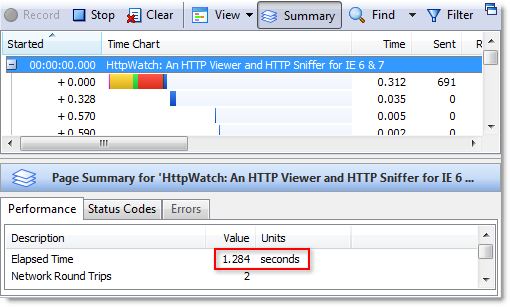
- HttpWatch will then display a time chart with the page load time:
Of course, with a test like this you really want to run it automatically. The HttpWatch Automation interface (document in the HttpWatch Help file) allows you to do this in a few lines of code. Here’s the code in C# for the Empty Cache test:
// Set a reference to the HttpWatch COM library // to start using the HttpWatch namespace // // This code requires HttpWatch version 6.x // using HttpWatch; namespace EmptyCacheTest { class Program { static void Main(string[] args) { string url = "https://www.httpwatch.com/download/"; Controller controller = new Controller(); // Create an instance of IE (For Firefox use // controller.Firefox.New("") ) Plugin plugin = controller.IE.New(); // Clear out all existing cache entries plugin.ClearCache(); plugin.Record(); plugin.GotoURL(url); // Wait for the page to download controller.Wait(plugin, -1); plugin.Stop(); // Find the load time for the first page recorded double pageLoadTimeSecs = plugin.Log.Pages[0].Entries.Summary.Time; System.Console.WriteLine( "The empty cache load time for '" + url + "' was " + pageLoadTimeSecs.ToString() + " secs"); // Uncomment the next line to save the results // plugin.Log.Save(@"c:\temp\emptytestcache.hwl"); plugin.CloseBrowser(); } } } |
and here’s the Primed Cache test. Notice how we use controller.IE.New() a second time to ensure that a new instance of IE is started:
// Set a reference to the HttpWatch COM library // to start using the HttpWatch namespace // // This code requires HttpWatch version 6.x // using HttpWatch; namespace PrimedCacheTest { class Program { static void Main(string[] args) { string url = "https://www.httpwatch.com/download/"; Controller controller = new Controller(); // Create an instance of IE (For Firefox use // controller.Firefox.New("") ) Plugin plugin = controller.IE.New(); // Visit the page to prime the cache plugin.GotoURL(url); plugin.Record(); controller.Wait(plugin, -1); // Shutdown IE and create a new instance plugin.CloseBrowser(); plugin = controller.IE.New(); plugin.Record(); // Visit the page a second time with the cache primed plugin.GotoURL(url); controller.Wait(plugin, -1); plugin.Stop(); // Find the load time for the first page recorded double pageLoadTimeSecs = plugin.Log.Pages[0].Entries.Summary.Time; System.Console.WriteLine( "The primed cache load time for '" + url + "' was " + pageLoadTimeSecs.ToString() + " secs"); // Uncomment the next line to save the results // plugin.Log.Save(@"c:\temp\emptytestcache.hwl"); plugin.CloseBrowser(); } } } |
BTW, everything we’ve mentioned in this blog post works with the free Basic Edition of HttpWatch as well as the Professional Edition.