July 07th, 2008 - 3:00PM The recently announced Google Ajax Libraries API caught our attention because it offers some significant performance improvements if you use a popular Javascript library (e.g. JQuery, prototype, script_aculo_us, MooTools or dojo) on your site. You can now reference these libraries at Google rather than having to host your own copy. The benefits of this approach are:
google.load() functionBased on these benefits, we decided to upgrade our Ajax gallery page to use the Google hosted version of jQuery. To do this we simply changed the script tag to use the URL of the minimized version of jQuery 1.2.6 at Google:
<script src="http://ajax.googleapis.com/ajax/libs/jquery/1.2.6/jquery.min.js"> </script>
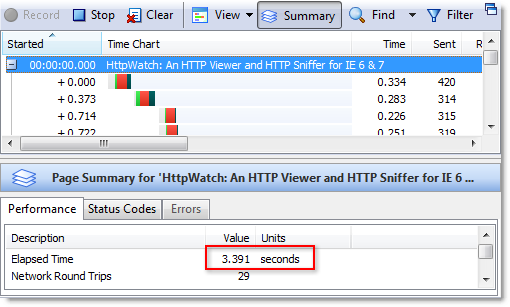
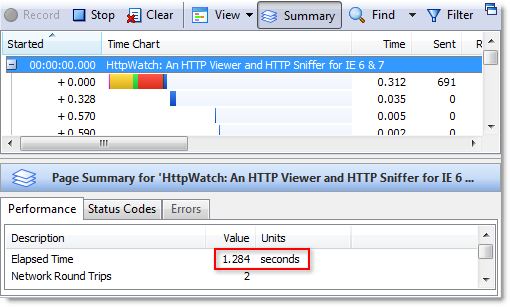
The Google hosted version of the jQuery library gave us a consistent decrease in page load time of about 0.5 seconds. This benefit was largely achieved through the use of a different hostname (ajax.googleapis.com) which avoided Blocked time on the library download. You can see this clearly by first looking at the HttpWatch time chart of the Ajax page load in IE 7 using our own hosted copy of jQuery:
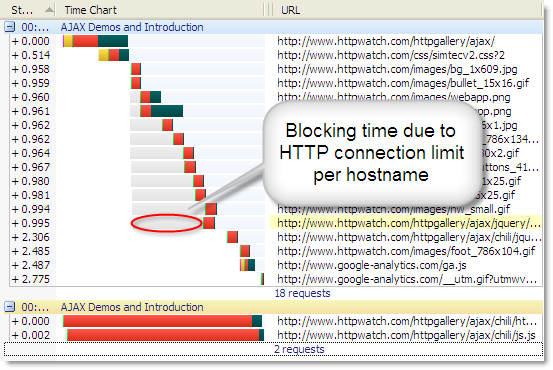
and then the time chart of the page load using the Google hosted version:
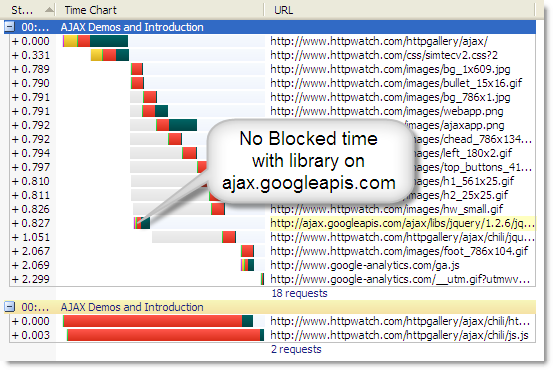
We also saw a reduction in the Wait time displayed in HttpWatch. It reduced from about 150 ms with our hosted version to about 60 ms from Google. This was probably due to the use of Google’s Content Delivery Network (CDN). Our web server is hosted in Dallas, Texas and has a ping time of about 140 ms from our office in the UK. The Google host ajax.googleapis.com has a much lower ping time of 29 ms from here in the UK.
However, the overall response time for the library download, ignoring Blocked time, was slightly longer from Google because it incurred an extra DNS look-up and TCP connection. Here is the request level time chart for our hosted version of the library:
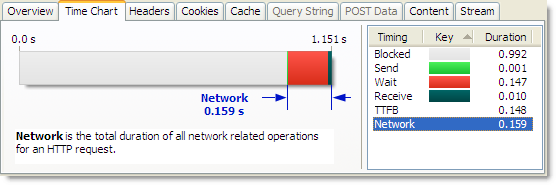
and the Google hosted version:
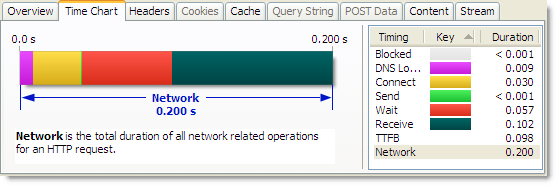
One slight disappointment was that Google has set the cache expiration time of the library to one year in the future:
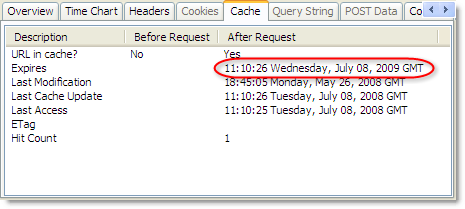
On most other Google sites they use very long expiration times as described in our Two Simple Rules for HTTP Caching post. They could have done this here, but it probably helps them to gather some usage statistics on these libraries and the chances of a cached Javascript library surviving in a browser cache for more than a year are fairly low.
In the end though, we hit one problem that stopped us using the Google hosted library. There appears to be no support for using HTTPS to download the library. Our Ajax page can be used in HTTP and HTTPS mode. If we simply hard-coded the HTTP download URL for Google we would end up with the dreaded ‘Do you want to display nonsecure items ?’ that we described in a previous post:
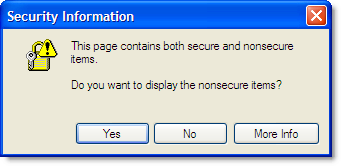
So, if you are only using HTTP there are some excellent performance benefits from using the Google hosted Javascript libraries, but if your site needs HTTPS you’ll be forced to use your own hosted version on secure pages. Let’s hope that Google adds SSL support to ajax.googleapis.com.
Posted on July 07, 2008 in
Caching,HttpWatch,Javascript,Optimization
Tags: Google,HttpWatch,Javascript,jQuery
RSS for this post |Trackback URL
May 05th, 2008 - 6:22PM If you’re tuning a web page’s performance there are two types of visitors that you need to be concerned about:
Visitor type 1) is said to be in the Empty Cache state and Vistor type 2) is said to be in the Primed Cache state. Optimizing for visitors with an empty cache is important as their initial impressions of your site will be affected by how quickly its pages are loaded.
The performance of any page is never going to worse for visitors with a primed cache, but minimizing the load on your site caused by existing users through the use of effective caching will reduce your bandwidth costs and server load.
Your can manually simulate these two scenarios with HttpWatch. For example, you could run an Empty Cache test on our home page (www.httpwatch.com) using these steps:


To run the Primed Cache test you would first need to ensure that the page has already been visited and then re-visit it in a new instance of IE. You shouldn’t re-use the same instance of IE because there may some images held in memory from the first visit to the page. To perform the Primed Cache test you would need to:

Of course, with a test like this you really want to run it automatically. The HttpWatch Automation interface (document in the HttpWatch Help file) allows you to do this in a few lines of code. Here’s the code in C# for the Empty Cache test:
// Set a reference to the HttpWatch COM library // to start using the HttpWatch namespace // // This code requires HttpWatch version 6.x // using HttpWatch; namespace EmptyCacheTest { class Program { static void Main(string[] args) { string url = "http://www.httpwatch.com"; Controller controller = new Controller(); // Create an instance of IE (For Firefox use // controller.Firefox.New("") ) Plugin plugin = controller.IE.New(); // Clear out all existing cache entries plugin.ClearCache(); plugin.Record(); plugin.GotoURL(url); // Wait for the page to download controller.Wait(plugin, -1); plugin.Stop(); // Find the load time for the first page recorded double pageLoadTimeSecs = plugin.Log.Pages[0].Entries.Summary.Time; System.Console.WriteLine( "The empty cache load time for '" + url + "' was " + pageLoadTimeSecs.ToString() + " secs"); // Uncomment the next line to save the results // plugin.Log.Save(@"c:\temp\emptytestcache.hwl"); plugin.CloseBrowser(); } } }
and here’s the Primed Cache test. Notice how we use controller.IE.New() a second time to ensure that a new instance of IE is started:
// Set a reference to the HttpWatch COM library // to start using the HttpWatch namespace // // This code requires HttpWatch version 6.x // using HttpWatch; namespace PrimedCacheTest { class Program { static void Main(string[] args) { string url = "http://www.httpwatch.com"; Controller controller = new Controller(); // Create an instance of IE (For Firefox use // controller.Firefox.New("") ) Plugin plugin = controller.IE.New(); // Visit the page to prime the cache plugin.GotoURL(url); controller.Wait(plugin, -1); // Shutdown IE and create a new instance plugin.CloseBrowser(); plugin = controller.IE.New(); plugin.Record(); // Visit the page a second time with the cache primed plugin.GotoURL(url); controller.Wait(plugin, -1); plugin.Stop(); // Find the load time for the first page recorded double pageLoadTimeSecs = plugin.Log.Pages[0].Entries.Summary.Time; System.Console.WriteLine( "The primed cache load time for '" + url + "' was " + pageLoadTimeSecs.ToString() + " secs"); // Uncomment the next line to save the results // plugin.Log.Save(@"c:\temp\emptytestcache.hwl"); plugin.CloseBrowser(); } } }
BTW, everything we’ve mentioned in this blog post works with the free Basic Edition of HttpWatch as well as the Professional Edition.
Posted on May 05, 2008 in
Automation,C#,Caching,HttpWatch,Internet Explorer,Optimization
Tags: C#,HTTP,HttpWatch,IE
RSS for this post |Trackback URL
April 04th, 2008 - 11:47AM Have you ever been to a web site and seen this?

This warning is triggered in IE if it is displaying a secure HTTPS page that has caused a non-secure (i.e. HTTP based) resource to be downloaded. The message box doesn’t allow the user to control whether the non-secure content should be downloaded, only whether it should be displayed.
This seems rather pointless as the damage may already have been done if the non-secure content was a picture of your passport, bank statement or credit card! However, this is the default setting in IE so it is best to avoid this warning being generated on your web site.
This setting can be changed in IE by:
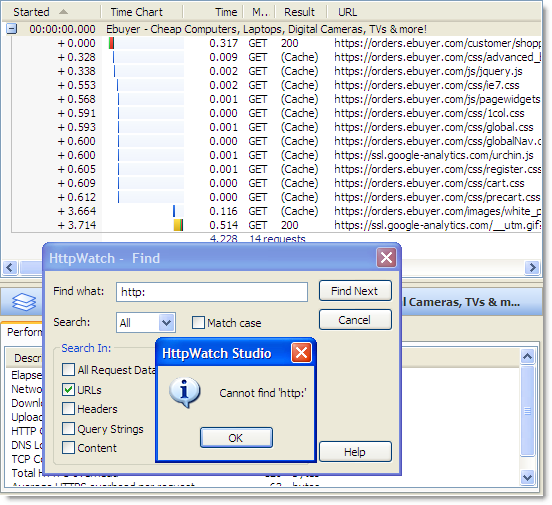
Recently, we saw this warning in the shopping cart of an computer store, so we fired up HttpWatch to see what was causing the problem. A quick search for a URL starting with ‘http:’ should have located the request causing the problem:

No HTTP requests were recorded for this page in HttpWatch. So what was causing the ‘Do you want to display nonsecure items’ message?
It turns out that IE warns about HTTP based content even if it was read from the browser cache or the IE image cache. Requests from the browser cache are shown as (Cache) in HttpWatch, but as we previously described access to the IE image cache is not recorded.
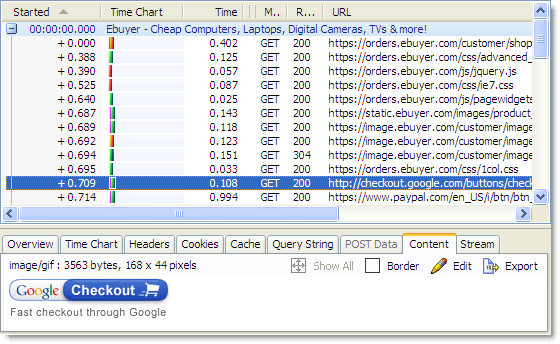
The resource causing the warning on this page must have been read from the image cache. We confirmed this by refreshing the page in IE and performing another search:

The refresh forced IE to download all the embedded resources on the page and it became clear that it was the Google Checkout image that was causing the problem. Changing this image’s URL to use HTTPS would prevent the warning from appearing.
Posted on April 04, 2008 in
Caching,HTTP,HTTPS,HttpWatch,Internet Explorer
Tags: Caching,HTTP,HTTPS,HttpWatch,IE
RSS for this post |Trackback URL